Your services, your hardware, your rules.
Buddy Cluster turns ordinary machines into a Kubernetes cluster you set up and run entirely from a web panel. No terminal, no systems administrator, and nothing rented by the month.
It starts here
On a machine with Ubuntu Server on it — an ARM one or an x86-64 one, one package covers both. The sha256sum line is the one worth keeping: it is what tells you that the package which arrived is the package that was published. After the last line, you open a browser and do not come back here.
v=0.0.22curl -fLO https://releases.buddy-cluster.dev/releases/$v/buddy-cluster-$v-linux.tar.gzcurl -fLO https://releases.buddy-cluster.dev/releases/$v/SHA256SUMSsha256sum -c SHA256SUMStar xzf buddy-cluster-$v-linux.tar.gzcd buddy-cluster-$v-linux && sudo ./install.shThe wall small organisations hit
Running your own software reliably means clustering, encrypted networking, certificates and updates that never stop arriving. The tools that do those things well are built for people who do this professionally, and they assume you are one of them.
Buddy Cluster puts those tools behind guided flows. You answer questions in a browser and it does the work on the machines. Nothing is concealed: each flow states what it is about to change before it changes it, and what you end up with is ordinary Kubernetes underneath. If you outgrow the panel, you have not been locked into an appliance.
Will it work?
Setting it up is the part that stops most people. Buddy Cluster does it: it installs the cluster software on the first machine, brings up an encrypted private network, and hands you the panel. You watch it happen — each step named, including the ones still to run.
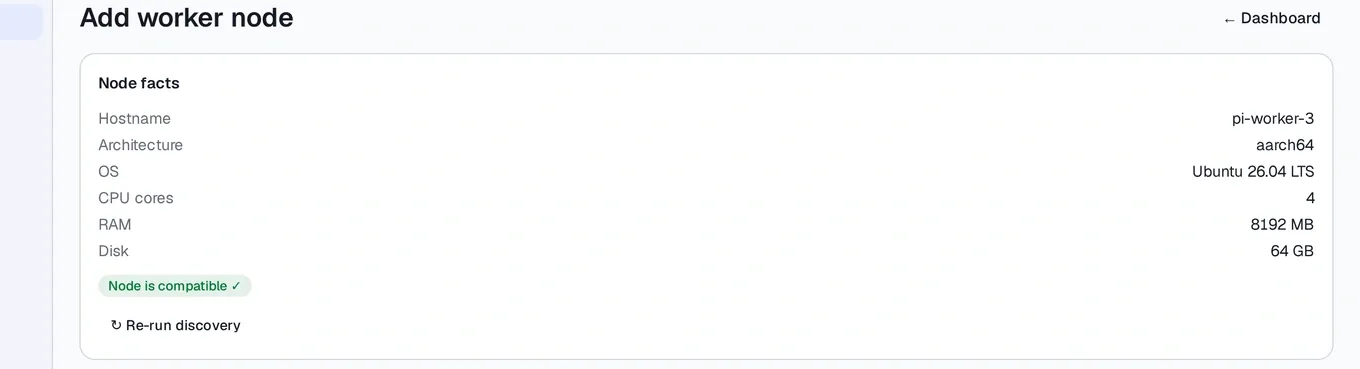
After that, adding a machine is a guided flow rather than a runbook. Buddy reads the machine first and tells you whether this cluster can serve it, before it installs anything. Each one joins over that private network and never appears on your office network. Software arrives as packages from catalogues you choose, and upgrades in place.
The machines do not have to match. One package carries both an ARM64 and an x86-64 build, and each machine is served the one it can run — so an old office PC can join a cluster of small boards. That is new in this release.

Will it keep working?
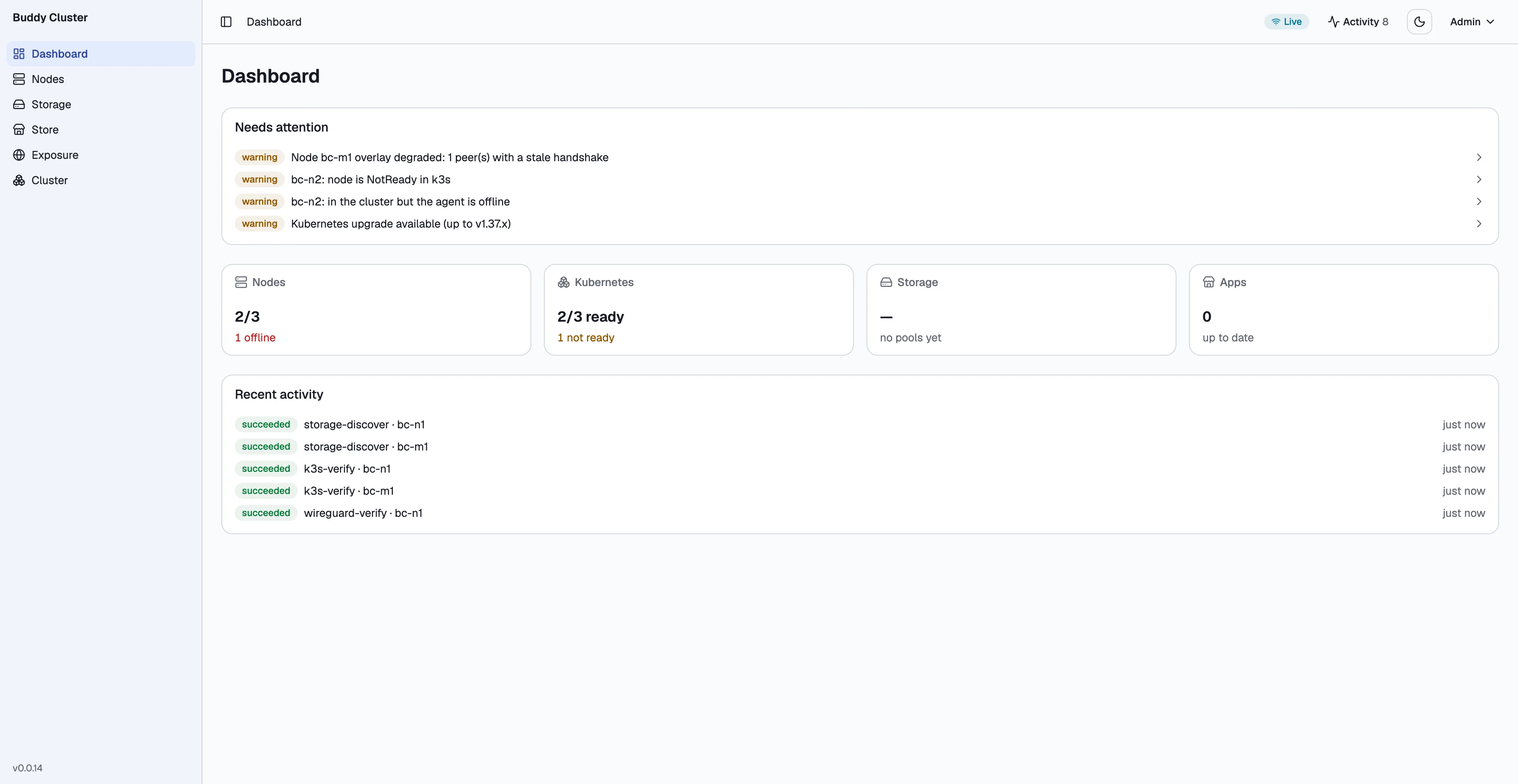
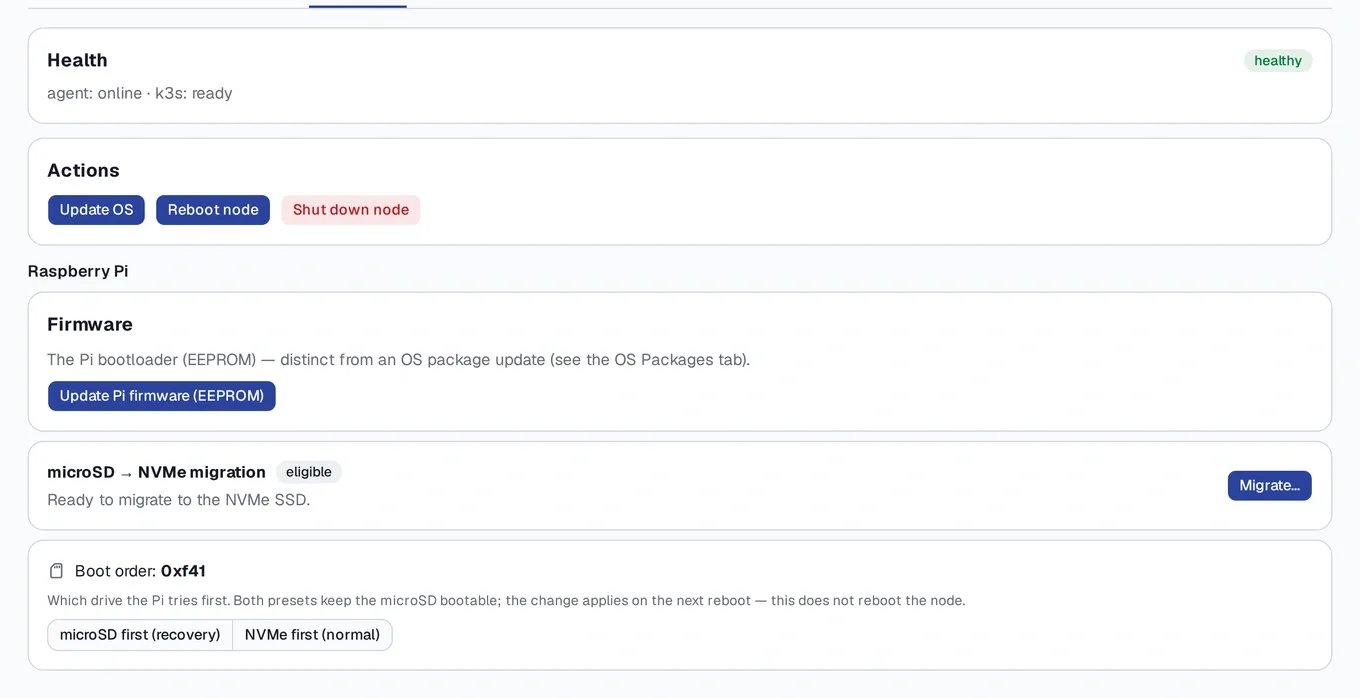
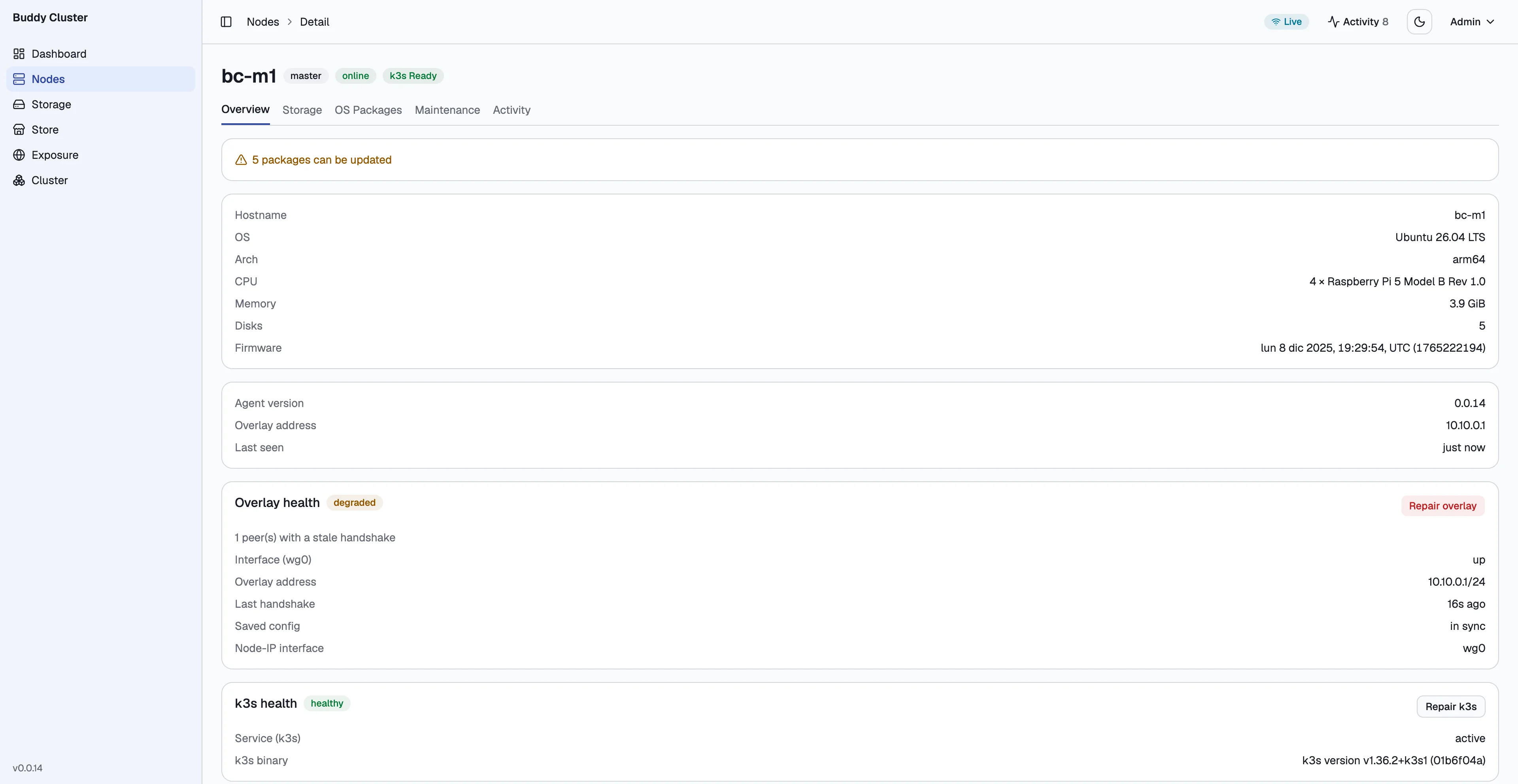
The panel opens on status rather than on a menu: if anything needs you, you see it before you see anything else. It watches the private network and cluster membership, keeps machines patched — operating system, firmware and kernel, with reboots handled — and updates the whole cluster in one pass, taking a restore point first so you can go back.
It also updates itself. The panel checks a signed document once a day to learn whether a newer version of Buddy exists, and can install it for you. That check is off until you switch it on, it sends nothing about your cluster, and if the install fails the machine puts back the version it was running and tells you why.
Publishing a service to the internet is the part a small business usually cannot do at all. An ordinary broadband line has no fixed address, and many sit behind carrier-grade NAT, where forwarding a port on the router is not an option in the first place. Buddy Cluster works either way: it detects how traffic can reach you, and where it has to, runs a small connector that dials out instead. No router changes, no fixed address. You get your own domain name and a valid certificate, arranged when you publish rather than afterwards.
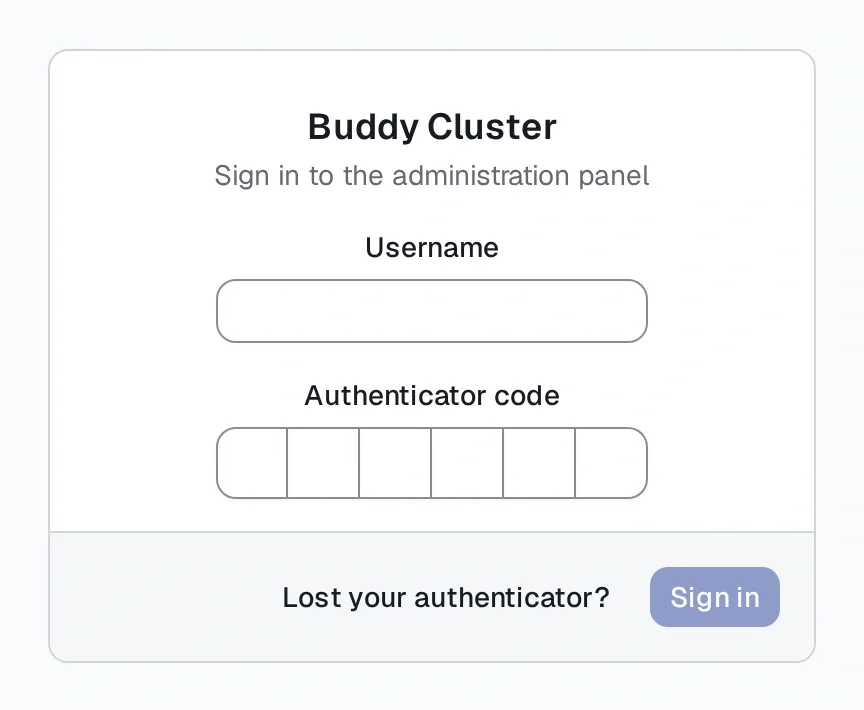
Getting into the panel is your username and a six-digit code from an authenticator app. After enrolment there is no password left to leak.

What happens when it breaks?
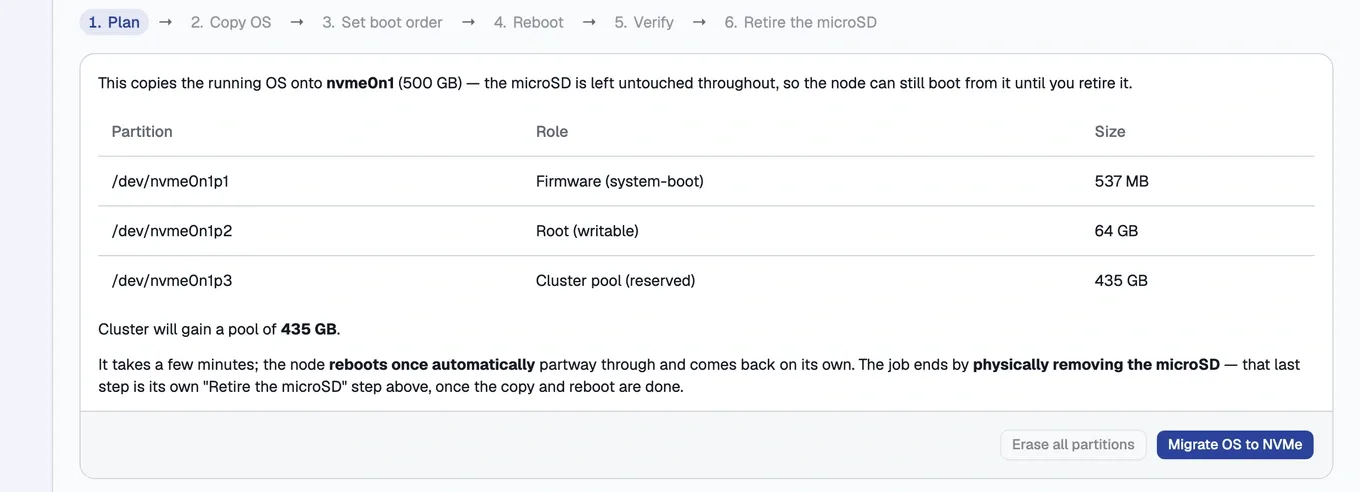
Every flow says what it is about to do before it does it. Moving a machine's system from its memory card onto an SSD opens with the plan: which disk, what each partition becomes, that the machine reboots once on its own partway through, and that the job ends with you physically pulling the card out. Then it walks the steps live. Close the panel halfway and it resumes where it left off.
When something is wrong, the panel names it in ordinary words and offers the repair rather than a command to run.
And if you ever want the unmediated view, it is right there. The panel carries Headlamp, a full Kubernetes interface, on a screen of its own — the project's own card labels it for power users. What is underneath is ordinary Kubernetes, and nothing stops you from working with it directly.
Measured, not claimed
The project publishes its own figures. On ARM64 the Buddy stack itself idles at58 MB, which is roughly the point of the exercise.
The k3s control plane underneath it does not. A configured first machine idles at about1076 MB with no workloads on it at all, which is why the documented minimum moved from 1 GB to 2 GB. That number moved against the project’s own target, and it is in the documentation anyway.
What it does not do yet
Version v0.0.22, developed in the open.
- Every machine has to sit on one local network. Machines split across sites are not supported yet.
- There is no image to flash. There is one package, and you run its installer on an Ubuntu Server you have already put on the machine.
- The first machine needs 2 GB of memory — see the measurement above for why.
- A disk belongs to the machine it is plugged into. Nothing is copied to a second disk for you.
The release, and how to check it
One package, 40.5 MB, carrying both builds. The commands at the top of this page fetch it and verify it. These are the values they are verified against, and they are not typed here by hand — this page reads them from the same signed document your cluster reads to learn that a newer version exists.
sha256sum -c catches a download that arrived damaged. It does not catch one that was swapped, because whoever could swap the package could swap the checksum file beside it. What catches that is the signature over the checksum file, which you check against the key below — the same key compiled into Buddy itself, so your cluster and you are checking the same thing.
- Version
- v0.0.22
- Released
- 27 July 2026
- Size
- 40.5 MB
- SHA-256
- f1baa4fd7252fbcede0f50819e1372f1269428378ec0884ca257d23e7df9fc5e
- Signed with key
- D3261D815BEF2104
The document itself is public and static: https://updates.buddy-cluster.dev/v1/manifest.json.